
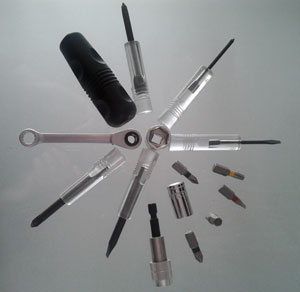
 I’ve got a Util folder where I keep some utilities, most of them are web-development related, others coming from *nix systems and sorely missing on windows, and some that I made.
Category: Productivity
-
Util Folder
-
Mozilla Firefox extensions
 Nowadays the browser extensions shape our browsing experience. Here is a list of extensions I use in Mozilla Firefox.
I have also made public the list of my favorite addons on the Mozilla website.
-
Converting Word Document to HTML
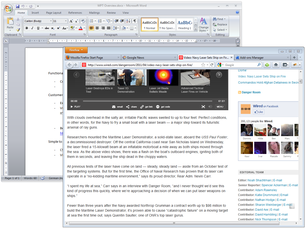
Microsoft Word happens to be the text editing application of choice for many of my clients. And they would like to post the content to web, so I still find myself in a situation where I need to export a Word document to HTML.
There is an option to “Save document as Html” in Word that results in big, convoluted, HTML file full of errors. Also, there is a bit of inline formatting where I would like the format to concur to the website formatting instead.
So, a good result would have no or very little formatting, and as simple as possible markup.
-
Run NUnit for the current VisualStudio project
On a lot of projects, I use NUnit for unit testing, usually I create a separate project that contains only the tests.
There tools that integrate fully with the Visual Studio, like ReSharper or TestDriven.NET, but they cost money and you can’t run them on Express editions.
So I’ve made this useful shortcut to easily run it for the current (test) project. Screenshots are made on Microsoft Visual Studio 2010 Professional running on Windows 7.
-
Google Chrome extensions
 I find myself using multiple browsers, but nowadays the browser extensions shape our browsing experience more than a browser. Here is a list of extensions I use in Google Chrome.
 -
AutoHotkey Scripts
As I have already stated, one of my favourite tools that I install right away on a fresh machine is the AutoHotkey. It makes life a bit easier shortening the way to perform common tasks. Among other features, it provides a way to associate keyboard shortcuts with a scripted outcome.
-
Tools List
I had to reinstall my home desktop computer recently, and at least one good thing coming out of it is the list of tools I install right away. So here it is…
-
Searching from browser – Firefox quick searches and Chrome search engines
Search engine web site can be skipped
Some new browsers have a Search field (Firefox, Internet Explorer, Opera, f.ex.), it’s located at the top right part of the browser window, next to the address bar. This is a nice little feature, you can select a search engine, type the search terms and submit. Then search engines site is opened with results. Usually suggestions are shown as you type.